

data-* attributes on the <script> tag. Each tag creates one independent widget.
Attributes
Rules common to all attributes:
- The configuration is read once, when the script starts. Changing attributes later does not change the widget’s text, language or position. To do that, remove the widget (
destroy()) and insert the script again. - Text is plain text, never HTML - tags are displayed literally.
- A whitespace-only value counts as empty.
- An invalid value or an exceeded limit prevents only that instance from starting and leaves a message prefixed with
[PaymoveWidget]in the browser console that points to the invalid attribute.
Button and bubble
The button appears whendata-button-label is not empty. The widget has no default text - you always provide the label, in your page’s language.
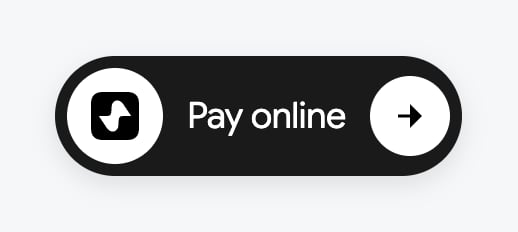
The button alone - data-button-label="Pay online"
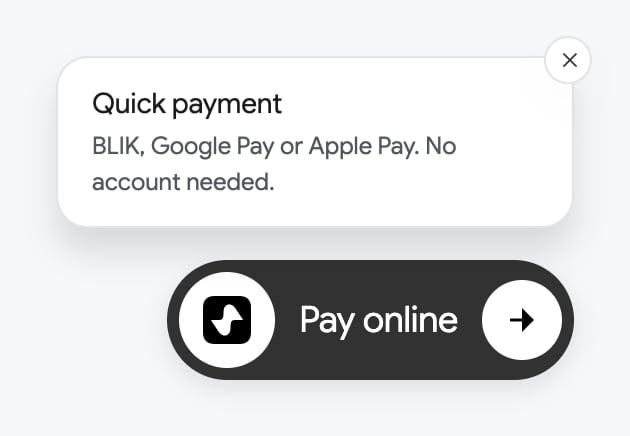
The bubble above the button - data-bubble-title and data-bubble-description
data-bubble-title or data-bubble-description (or both). It works like this:
- it shows when the pointer hovers over the button or when you reach it with
Tab; it does not show on touch screens, - it stays visible while you move the pointer from the button onto the bubble, and hides when the pointer and focus leave the widget,
Eschides it temporarily, and the close icon hides it for the lifetime of that widget instance (until the page reloads),- opening the modal hides the bubble,
- it takes no space in the page layout; when there is not enough room above the button, it shows below it,
- the animation takes 200 ms and is disabled when the system has reduced motion turned on.
The bubble requires the widget’s button. Without
data-button-label the bubble is not rendered, even if you set a title and description.Without the widget button
Omitdata-button-label if the modal should be opened by your own element - a menu link, a banner or a button in the content. The widget then displays nothing until you open it:
Position
Without position attributes the button is pinned to the bottom-right corner of the screen, respecting safe-area insets on devices with a screen notch. Thedata-left, data-right, data-top and data-bottom attributes set the distance of the button from the edges of the browser window (fixed position). They accept a number or a px value: 24 and 24px mean the same.
- Each attribute works on its own.
data-left="24"moves the button to the left edge and keeps the default distance from the bottom. - Choose one edge per axis:
leftorright,toporbottom. Providing both opposite edges prevents the widget from starting. - Position applies only to the button. The bubble adjusts to it by itself, and the modal is always centred.
- Pick distances so the button doesn’t cover other floating elements - a chat, a cookie banner, a “back to top” button.
Language
data-locale sets the language of the payment page in the modal. It accepts a language code (pl, en) or a code with a region (pl-PL, en-US).
- Polish and English are available for every product, and some products also support other languages, including German, Ukrainian, Czech and Slovak.
- When the given language is not available, the payment page uses the language the customer chose earlier, then the browser language.
- Without
data-localethe language is chosen the same way. - The customer can change the language during the flow.
- The texts you provide -
data-button-labeland the bubble - are not translated. Pass them in your page’s language. - Messages of the widget itself (loading, error, “Try again”, “Close”) take their language from
data-locale, then from thelangattribute on<html>, then from the browser.
Texts from an i18n library
At("…") literal written in HTML is not evaluated. On a multilingual site, build the script tag in JavaScript and set the attributes before inserting it into the document:
destroy()) and insert the script again with the new texts.
Several widgets on one page
Each<script> tag creates a separate widget with its own button. You can combine different products, also from different script URLs - e.g. tickets and parking on an event page:
- Give each widget a different
data-widget-id. Another script with the same ID is ignored. - Widgets don’t lay themselves out - without position attributes all buttons land in the same corner and overlap. Space them out with the
data-*attributes. - Only one modal can be open on a page. Opening a second widget closes the first.
- A configuration error in one widget does not block the others.